
Overview
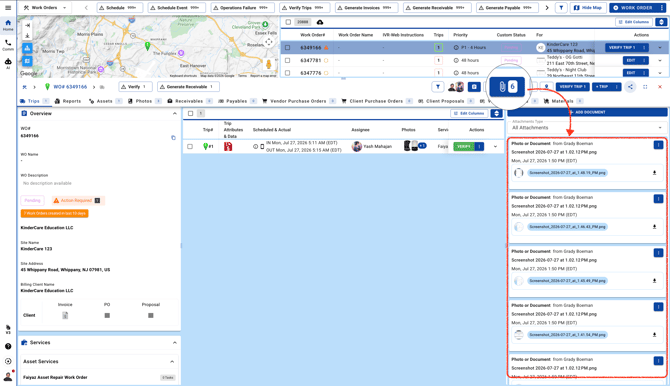
What you can do
The upload modal takes a whole batch. Drag files in or browse and multi-select, set your sharing once, and every file lands as its own attachment. Work Orders, Trips, invoices, and Proposals all take a batch the same way.
How to find itOpen a Work Order and go to the Attachments pane. Click + Add Document, choose Photo or Document, and hit Next. The upload modal opens with a drag area and a Browse Files button. Drop your files in, set sharing, and click Upload.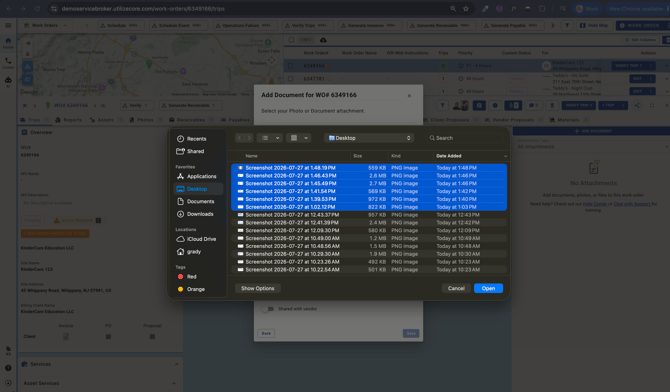
What you can do
- Drag and drop a batch. Drop several photos and documents straight onto the modal in one pass.
- Multi-select from device. Browse Files opens your device picker and takes more than one file at a time.
- Set sharing once. Toggle client and vendor visibility for the whole batch, and add one optional description, before you upload.
- Each file stands alone. On upload, every file saves as its own attachment under Photos & Documents.
- Open the Trip inside the Work Order and go to its Attachments pane.
- Click + Add Document, choose Photo or Other, and hit Next. The modal opens titled with the work order and trip number, so there is no guessing where files will land.
- Drag your files in or browse and multi-select, then click Upload. Each file saves to that Trip as its own attachment.
- Works anywhere the right-panel upload appears: Work Orders, Trips, invoices, and Proposals.
- Each file becomes its own attachment, so you can manage or remove them individually.
- After upload, the pane filters to Photos & Documents so you see exactly what landed.
- Sharing toggles and the optional description work exactly the same on Trips and financials as on the Work Order.
Reach out to your Customer Success Manager or contact support@utilizecore.com.