
We've been busy! Between app-wide polish and squashing bugs, June was a big month for new features. Here are the highlights:
⚙️Custom WO Columns (Version 3)
View your lists, your way. Pick exactly which columns you see on the Work Order list, and the order in which they appear and Admins can lock in smart defaults by Role, so everyone on the team starts with the view that best fits their job. Soon you will be able to customize columns for all pages in Version 3.
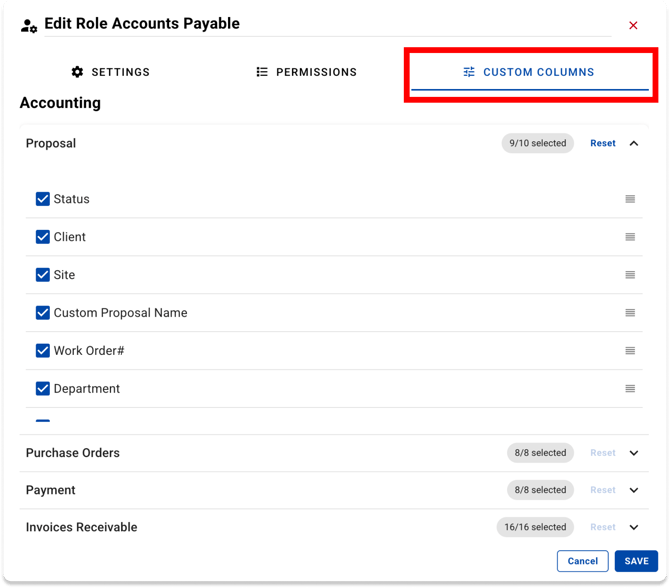
Customize by Role (Admins)
- Head to Roles, click Edit on any role, and open the brand-new Custom Columns tab.
- Expand a row to choose the default columns that role sees or change the order in which they appear.
Customize by User
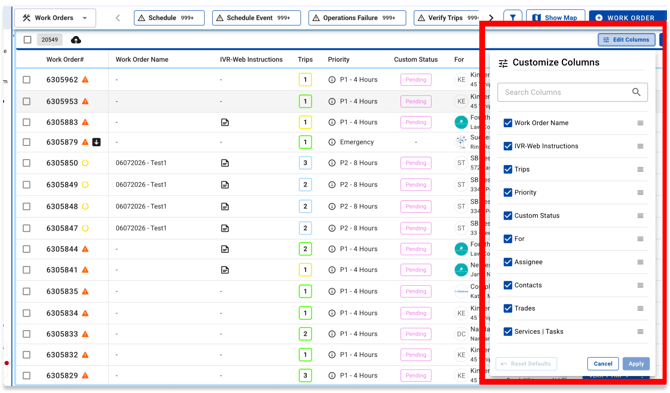
- On the Work Orders list, hit Edit Columns (right next to Sort).
- Toggle the columns you want, drag to reorder, and click Save. Your custom view is live instantly.
🔗 Link to CMMS — Right from Work Orders
For clients running CMMS integrations, jumping between platforms just got a whole lot easier. A new icon on the Work Orders list and detail view takes you straight to the matching Work Order in your CMMS — so adding proposals, invoices, and anything else that doesn't sync over is a breeze. Got Company Instructions? They're in the Work Order list too — open them from an icon on the list, or find them in the new section of the Site panel on the Work Order detail view.
🗓️ Plan Ahead with Scheduled Services Work Orders
Stay one step ahead of your technicians' workload. With the new Work Order Frequency setting, you can generate Scheduled Services Work Orders a fixed number of days before the Estimated Start Date — Work Orders and Trips spin up automatically, right on schedule.
🖇️All Your Work Order Attachments in One Place
No more hunting through different document types. Every attachment and resource tied to a Work Order now lives in a single, scannable list — giving you the full story on the service at a glance.
🖱️Drag & Drop Work Order Attachments
Easily upload photos and attachments to a Work Order by dragging and dropping the files into the to Attachment section. This can be done for a single attachment or in bulk. Files uploaded together will share a name and description, but can be easily updated once loaded.
⚡️Auto-Generate Work Order Reports on Status Change (Version 3)
Set it and forget it. In Company Settings, set any custom status to automatically generate and send a Work Order Report the moment a Work Order hits that status — delivered to your Customer and Vendor at the same time. Every report lands in the activity feed, saves to the Work Order's files, and can route straight to the CMMS.
↕️ Sort Trips by ETA and ETC (Version 3)
Prioritizing your Scheduling and Operations Failure work orders has never been easier from the Trips list, as you can now sort ascending and descending based on a Trip’s ETA or ETC. Make sure you’re scheduling and unblocking based on the Priority shared by you and your Team Member and/or Vendor.
Questions? Contact your Account Manager, or email support@utilizecore.com